
- If you're on Shopify, use Shopify Payments (powered by Stripe). It's built in, charges 2.9% + $0.30 per transaction, and avoids Shopify's extra 2% fee for third-party gateways. Enable PayPal as a secondary option for buyers who prefer it.
- If you're on WooCommerce, use Stripe (2.9% + $0.30) as your primary gateway. It handles cards, Apple Pay, Google Pay, and BNPL. Add PayPal as a secondary method. Both integrate in minutes via free plugins.
- PayPal and ShipStation integration connects your PayPal payment data with ShipStation's shipping automation. This lets you import PayPal orders directly into ShipStation for label printing, tracking, and fulfillment. Access it through your ShipStation dashboard under "Selling Channels" and connect your PayPal account.
- Payment gateway fees eat 2.5-3.5% of every sale. On $10K/month revenue, that's $250-$350/month in processing fees alone. Choosing the right gateway and avoiding unnecessary surcharges can save you $500-$2,000/year.
I watched a new seller lose her first three sales because her payment gateway wasn’t configured correctly. Customers clicked “Pay” and got an error page. By the time she fixed it two days later, those buyers had purchased from a competitor. Payment setup isn’t glamorous, but getting it wrong costs you real money from day one.
A payment gateway is the technology that processes online transactions between your customer and your bank. When a buyer enters their credit card on your checkout page, the payment gateway encrypts that data, verifies the card with the issuing bank, approves or declines the transaction, and transfers funds to your merchant account. For ecommerce sellers, the three most important payment tools to understand are Stripe (the most common ecommerce payment processor), PayPal (the most recognized checkout option for buyers), and ShipStation (which connects your payment data to shipping fulfillment). PayPal and ShipStation integration specifically lets you route PayPal orders into ShipStation for automated label printing and order tracking.
This guide covers which payment gateway to use based on your platform, how to set each one up, the real fees you’ll pay, and how to connect PayPal with ShipStation for order fulfillment. If you haven’t built your store yet, our how to start an ecommerce business guide covers the foundations, and our platform comparison helps you pick the right base.
Which Payment Gateway to Use (By Platform)
Don’t overthink this. Your ecommerce platform largely determines your best payment gateway option. Here’s the decision framework:
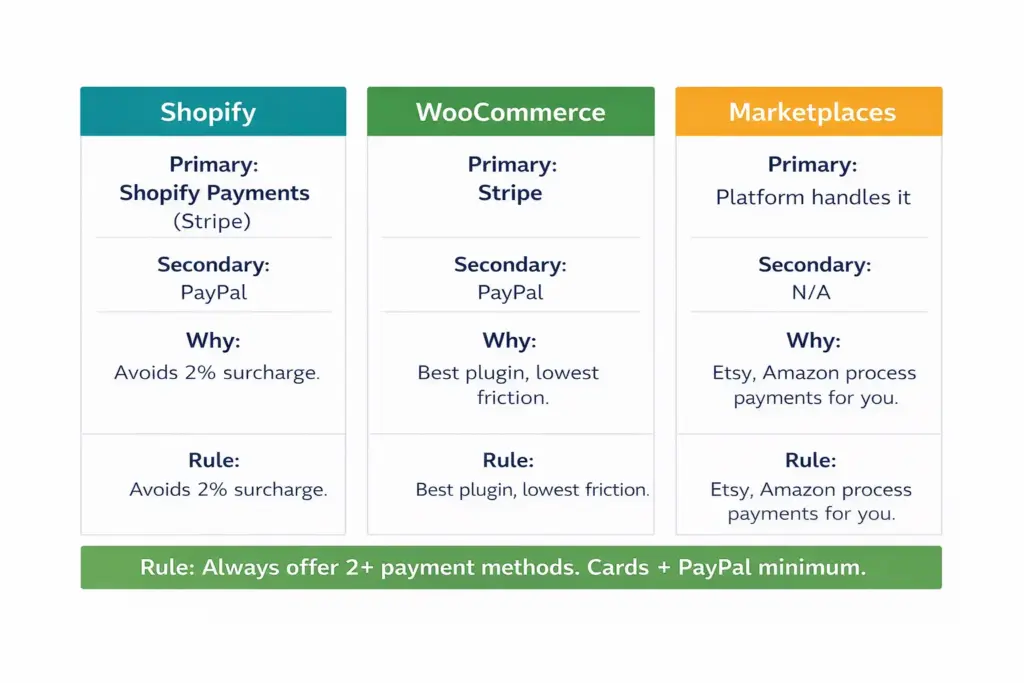
Shopify stores: Use Shopify Payments (primary) + PayPal (secondary). Shopify Payments is Stripe under the hood, built directly into Shopify. No extra setup needed beyond activating it in your Shopify admin. It processes credit cards, debit cards, Apple Pay, Google Pay, and Shop Pay. If you use a third-party gateway instead of Shopify Payments, Shopify charges an additional 2% fee per transaction on top of whatever the gateway charges. That surcharge alone makes Shopify Payments the obvious choice for any Shopify store.
WooCommerce stores: Use Stripe (primary) + PayPal (secondary). Stripe is the best ecommerce payment gateway for WooCommerce stores. Install the free WooCommerce Stripe plugin, connect your Stripe account, and you’re accepting payments. Stripe handles credit/debit cards, Apple Pay, Google Pay, and BNPL options (Klarna, Afterpay). Add PayPal via the WooCommerce PayPal plugin as a secondary checkout option.
BigCommerce stores: Use PayPal powered by Braintree (primary) + Stripe (secondary). BigCommerce has a built-in partnership with PayPal/Braintree offering competitive rates with no additional transaction fees on any plan. Stripe is also supported natively.
Marketplace sellers (Etsy, Amazon, eBay): Payment processing is handled by the platform. You don’t choose a gateway. Etsy uses Etsy Payments (processes cards, PayPal, Apple Pay). Amazon uses Amazon Pay. eBay uses managed payments. Funds deposit to your linked bank account on the platform’s payout schedule.
Payment Gateway Fees Compared
This is the table every seller needs before choosing a gateway. Fees look small per transaction but compound fast at volume.
| Gateway | Transaction Fee | Monthly Fee | Works With | Payout Speed |
|---|---|---|---|---|
| Shopify Payments | 2.9% + $0.30 (Basic), 2.6% + $0.30 (Shopify), 2.4% + $0.30 (Advanced) | $0 (included in Shopify plan) | Shopify only | 2-3 business days |
| Stripe | 2.9% + $0.30 | $0 | WooCommerce, Shopify, BigCommerce, custom | 2-7 business days |
| PayPal | 3.49% + $0.49 (standard), 2.59% + $0.49 (advanced) | $0 (standard), $5/mo (advanced) | All platforms | Instant to PayPal, 1-3 days to bank |
| Square | 2.9% + $0.30 (online) | $0 | Square Online, WooCommerce, custom | 1-2 business days |
| Authorize.net | 2.9% + $0.30 | $25/mo | WooCommerce, BigCommerce, custom | 2-5 business days |
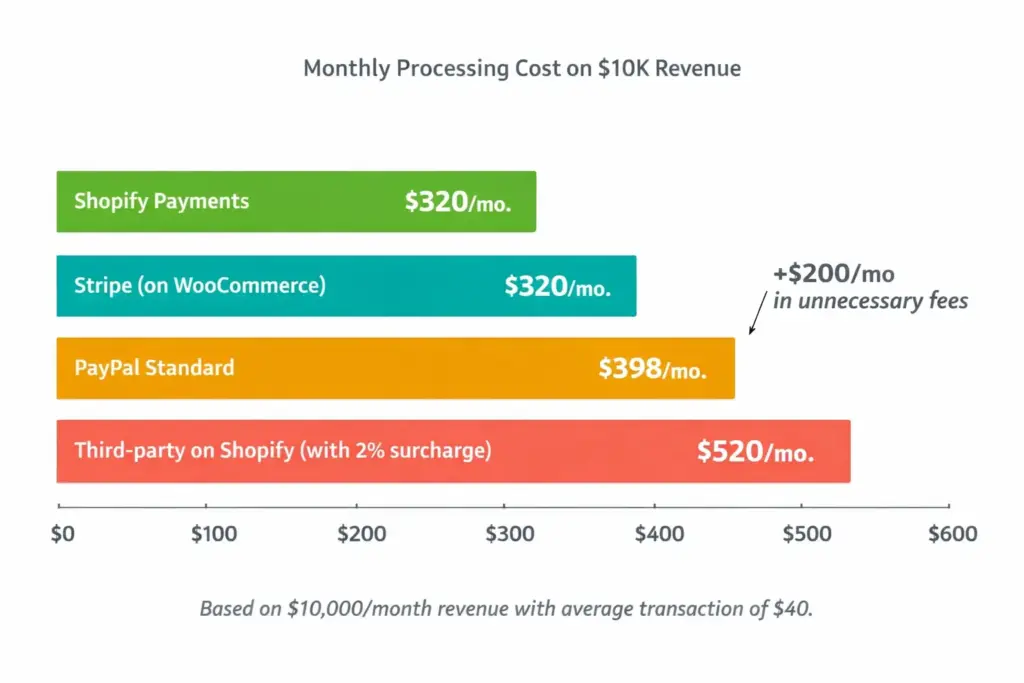
The fee math that matters: On $10,000/month in sales, Stripe costs you ~$320/month in processing fees. PayPal standard costs ~$398/month (significantly more due to higher percentage + higher fixed fee). On a Shopify store, using a third-party gateway adds Shopify’s 2% surcharge – turning that $320 into $520. Over a year, that’s $2,400 in unnecessary fees just for not using Shopify Payments. Choose carefully.
PayPal and ShipStation Integration
This is one of the most searched topics in ecommerce payments, and for good reason. If you sell through PayPal (either on your own site or through marketplaces that pay out via PayPal), connecting PayPal with ShipStation automates the most tedious part of fulfillment: getting order data into your shipping system.
What PayPal ShipStation integration does: It imports your PayPal orders (with customer name, address, and order details) directly into ShipStation’s dashboard. From there, you can print shipping labels, compare carrier rates, generate tracking numbers, and send tracking info back to customers. Without this integration, you’d manually copy-paste order details into your shipping software for every single order.
How to connect PayPal to ShipStation:
1. Log into your ShipStation account (or create one at shipstation.com – plans start at $9.99/month).
2. Go to Settings > Selling Channels > Connect a Store or Marketplace.
3. Select PayPal from the list of available channels.
4. You’ll be redirected to PayPal’s login page. Enter your PayPal ShipStation login credentials (your regular PayPal business account email and password).
5. Authorize ShipStation to access your PayPal transaction data.
6. Once connected, ShipStation automatically imports new PayPal orders every time it syncs (typically every hour, or you can manually trigger a sync).
Common PayPal ShipStation issues: If orders aren’t importing, check that your PayPal account is a Business account (personal accounts have limited API access). Ensure the transactions you’re looking for are marked as “Completed” in PayPal, not “Pending.” If your ShipStation PayPal login fails, try disconnecting and reconnecting the channel from ShipStation settings.
Stripe for Ecommerce: Why Most Stores Use It
Stripe has become the default ecommerce payment processor for a reason. It powers Shopify Payments, integrates natively with WooCommerce and BigCommerce, and handles everything from one-time purchases to subscriptions to marketplace payouts.
What makes Stripe ecommerce-friendly: Developer-friendly APIs (if you need custom checkout), but also plug-and-play plugins for non-technical sellers. Supports 135+ currencies. Handles Apple Pay, Google Pay, Link (Stripe’s one-click checkout), and BNPL options (Klarna, Afterpay, Affirm). PCI compliant out of the box, meaning you don’t handle raw credit card data. Automatic tax calculation available. Fraud protection (Radar) included at no extra cost.
Setting up Stripe on WooCommerce (takes 15 minutes):
1. Create a free Stripe account at stripe.com. You’ll need your business details, bank account for payouts, and tax ID (or SSN for sole proprietors).
2. In your WordPress admin, go to Plugins > Add New, search “WooCommerce Stripe Payment Gateway,” install and activate.
3. Go to WooCommerce > Settings > Payments. Toggle Stripe to “Enabled.”
4. Click “Manage” next to Stripe. Enter your Stripe API keys (found in your Stripe dashboard under Developers > API keys). Connect your account.
5. Enable additional payment methods: Apple Pay, Google Pay, and any BNPL options you want to offer. Each additional method reduces checkout friction and can improve conversion by 5-15%.
6. Test with Stripe’s test mode before going live. Use Stripe’s test card numbers to simulate successful and failed transactions. Once everything works, switch to live mode.
Essential Payment Setup Checklist
Beyond choosing a gateway, these settings directly impact your conversion rate and customer experience:
Enable multiple payment methods. Credit/debit cards are baseline. Add PayPal, Apple Pay, Google Pay, and at least one BNPL option. Research shows stores offering BNPL see 20-30% higher average order values because buyers are more comfortable purchasing premium items when they can split payments.
Configure tax collection. If you sell physical products in the US, you need to collect sales tax in states where you have nexus. Shopify, Stripe, and WooCommerce all offer automatic tax calculation. Enable it during setup, not after your first tax audit. Our legal setup guide covers nexus rules in detail.
Set up fraud protection. Enable Address Verification (AVS) and CVV checks. Stripe’s Radar does this automatically. PayPal has Seller Protection. These basic measures block most fraudulent transactions without adding friction for legitimate buyers.
Test your checkout end-to-end. Place a real order on your own store using a real card. Check: Does the payment process smoothly? Does the customer get a confirmation email? Does the order appear in your dashboard? Does the payout arrive in your bank? Testing prevents the “customers click pay and get an error” nightmare.
Display accepted payment methods. Show payment icons (Visa, Mastercard, PayPal, Apple Pay) in your footer and on the checkout page. Visible payment badges increase buyer confidence and reduce checkout abandonment. Our ecommerce web design guide covers checkout optimization in depth.
Frequently Asked Questions
How do I connect PayPal to ShipStation?
In ShipStation, go to Settings > Selling Channels > Connect a Store. Select PayPal, log in with your PayPal business account credentials, and authorize the connection. ShipStation will automatically import your PayPal orders for label printing and fulfillment. Ensure your PayPal account is a Business account for full API access.
What is the best payment gateway for Shopify?
Shopify Payments (powered by Stripe). It’s built into Shopify, charges 2.9% + $0.30 per transaction on Basic plan, and avoids the extra 2% surcharge Shopify adds when you use third-party gateways. Add PayPal as a secondary option for buyers who prefer it.
How much do payment gateways cost?
Most charge 2.5-3.5% plus $0.30 per transaction with no monthly fee. Stripe and Shopify Payments charge 2.9% + $0.30. PayPal charges 3.49% + $0.49 (standard). On $10K/month revenue, expect $250-$400/month in processing fees depending on which gateway you use.
What is Stripe ecommerce?
Stripe is a payment processing platform that lets ecommerce stores accept credit cards, debit cards, digital wallets (Apple Pay, Google Pay), and buy-now-pay-later options. It integrates with Shopify (powers Shopify Payments), WooCommerce, BigCommerce, and custom-built stores. No monthly fee, 2.9% + $0.30 per transaction.
Can I use PayPal and Stripe together on my store?
Yes, and you should. Most ecommerce stores offer both. Stripe handles card payments as the primary gateway. PayPal serves buyers who prefer paying through their PayPal balance or linked accounts. Offering both gives customers choice and reduces checkout abandonment.
What is the PayPal ShipStation login process?
When connecting PayPal to ShipStation, you use your standard PayPal business account login credentials. ShipStation redirects you to PayPal’s authorization page where you enter your email and password, then approve ShipStation’s access to your transaction data. This is a one-time setup. After connecting, orders sync automatically.
Related reads: How to Start an Ecommerce Business | Best Ecommerce Platform | Ecommerce Web Design | Legal Setup LLC & Tax | Ecommerce Startup Costs | Ecommerce Tools Tech Stack
Enjoying this? Get more like it every week.
One email per week with ecommerce strategies, tool picks, and seller insights. No spam.